Odoo 20.0 · guide ran on 24 September 2026
How to install Odoo 20 on Ubuntu.
Five copy-paste steps for Ubuntu 24.04, plus Debian 13, Docker, Windows, and macOS. Every Linux and Docker command here ran on a clean machine on the 20.0 release, and each step shows what you should see before you move on.
The short answer
On Ubuntu 24.04, install PostgreSQL, add Odoo’s 20.0 package repository, and run
sudo apt-get install odoo. Odoo 20 needs Python 3.12+ and
PostgreSQL 16+, and it now listens on localhost only by
default. On any other system, Docker is the fastest route.
- Python3.12+
- PostgreSQL16+
- .deb targetUbuntu 24.04
- Docker imageNot yet
- Web port8069
- Listens on127.0.0.1
Step by step
Pick your system.
Six ways in, one result: Odoo 20 answering on port 8069. Tick each step as you go. Your progress stays in this browser, so you can close the tab and come back.
Ubuntu 24.04 LTS · Debian 13 · official .deb
Install Odoo 20 on Ubuntu 24.04 or Debian 13
The path Odoo packages for: its 20.0 .deb targets Ubuntu 24.04 LTS, which ships the Python 3.12 and PostgreSQL 16 that Odoo 20 needs. The same steps work on Debian 13, which we ran as well. Five steps, and Odoo runs as a service that starts on boot.
-
Install PostgreSQL
Odoo keeps everything in PostgreSQL, and Odoo 20 needs version 16 or newer. Ubuntu 24.04 ships 16, so the stock package is enough.
sudo apt update sudo apt install postgresql -yCheck itpsql --versionpsql (PostgreSQL) 16.15 (Ubuntu 16.15-0ubuntu0.24.04.1) -
Add Odoo’s 20.0 package repository
Trust Odoo’s signing key, then point apt at the 20.0 channel on Odoo’s own server. This is the Community edition.
wget -q -O - https://nightly.odoo.com/odoo.key | sudo gpg --dearmor -o /usr/share/keyrings/odoo-archive-keyring.gpg echo 'deb [signed-by=/usr/share/keyrings/odoo-archive-keyring.gpg] https://nightly.odoo.com/20.0/nightly/deb/ ./' | sudo tee /etc/apt/sources.list.d/odoo.list -
Install Odoo 20
The package pulls every Python dependency from Ubuntu, creates an odoo system user and a matching PostgreSQL role, and starts Odoo as a service.
sudo apt-get update && sudo apt-get install odooYou should seeSetting up odoo (20.0.20260923) ...
Check itodoo --versionOdoo Server 20.0-20260923The date in the version is the nightly build. Yours will be newer, and that is fine.
-
Install wkhtmltopdf for PDF reports
Quotations and invoices print through wkhtmltopdf, and Odoo needs the 0.12.6 build with patched Qt for headers and footers. Ubuntu’s own wkhtmltopdf package is not that build. This one is the same file Odoo’s official Docker image installs on Ubuntu 24.04.
wget https://github.com/wkhtmltopdf/packaging/releases/download/0.12.6.1-3/wkhtmltox_0.12.6.1-3.jammy_amd64.deb sudo apt install -y ./wkhtmltox_0.12.6.1-3.jammy_amd64.debCheck itwkhtmltopdf --versionwkhtmltopdf 0.12.6.1 (with patched qt)On Debian 13, use the bookworm build instead (this ran clean too):
wget https://github.com/wkhtmltopdf/packaging/releases/download/0.12.6.1-3/wkhtmltox_0.12.6.1-3.bookworm_amd64.deb sudo apt install -y ./wkhtmltox_0.12.6.1-3.bookworm_amd64.debOn an ARM server, change amd64 to arm64 in the file name.
-
Open Odoo 20 and create your database
On the server itself, open http://localhost:8069. Odoo shows its database form with a master password it generated for you: write that down, it guards every database operation. Then fill in Database Name, Email, Password, Language, and Country, and choose Create database.
New in Odoo 20: it listens on 127.0.0.1 only. On a remote server, http://your-server:8069 will not answer from your laptop. Open an SSH tunnel, then browse to http://localhost:8069 on your own machine. For real users, put nginx with HTTPS in front (see “Before real users log in” below).
ssh -L 8069:localhost:8069 you@your-server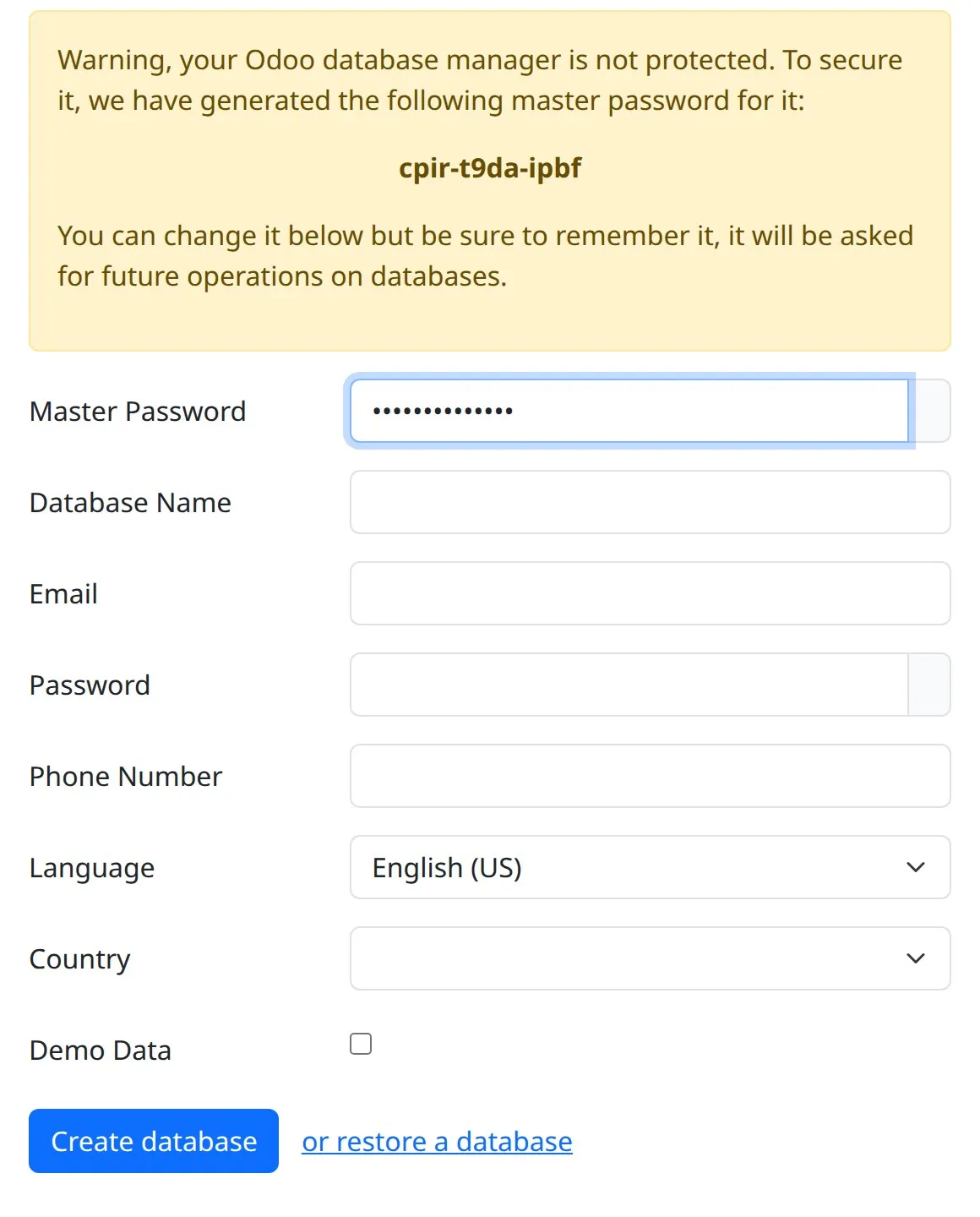
The real Odoo 20.0 first-run screen, captured on our test server on 24 September 2026.
Updates arrive through apt like any other package. Tested in a clean Ubuntu 24.04 container: the systemd lines follow Odoo’s packaging.
Docker · compose
Run Odoo 20 with Docker
Two small files and one command give you Odoo 20 and PostgreSQL, isolated from the rest of your machine. Odoo has not published an odoo:20 image on Docker Hub yet (checked 24 September 2026, the newest tag is 19), so this Dockerfile builds Odoo 20 from Odoo’s official 20.0 package.
-
Install Docker
Docker Desktop on macOS and Windows, Docker Engine on Linux. Compose ships with both.
-
Make a project folder
Everything for this install lives here. Your own modules go in an addons folder inside it.
mkdir odoo20 && cd odoo20 -
Save this as Dockerfile
It installs Odoo 20 from Odoo’s 20.0 package on Ubuntu 24.04, adds the right wkhtmltopdf for your machine’s chip, and handles the one Odoo 20 trap: the server only listens on localhost unless told otherwise.
# Odoo 20 Community, built from Odoo's official 20.0 package. # Use this until the official odoo:20.0 image is on Docker Hub. FROM ubuntu:noble ENV LANG=C.UTF-8 DEBIAN_FRONTEND=noninteractive RUN apt-get update \ && apt-get install -y --no-install-recommends ca-certificates curl gnupg \ && curl -fsSL https://nightly.odoo.com/odoo.key \ | gpg --dearmor -o /usr/share/keyrings/odoo-archive-keyring.gpg \ && echo 'deb [signed-by=/usr/share/keyrings/odoo-archive-keyring.gpg] https://nightly.odoo.com/20.0/nightly/deb/ ./' \ > /etc/apt/sources.list.d/odoo.list \ && ARCH="$(dpkg --print-architecture)" \ && curl -fsSLo /tmp/wkhtmltox.deb "https://github.com/wkhtmltopdf/packaging/releases/download/0.12.6.1-3/wkhtmltox_0.12.6.1-3.jammy_${ARCH}.deb" \ && apt-get update \ && apt-get install -y --no-install-recommends odoo /tmp/wkhtmltox.deb \ && mkdir -p /mnt/extra-addons && chown odoo /mnt/extra-addons \ && rm -rf /var/lib/apt/lists/* /tmp/wkhtmltox.deb USER odoo EXPOSE 8069 # Odoo 20 listens on 127.0.0.1 by default; inside a container it must # listen on all interfaces or the published port never reaches it. CMD ["odoo", "--http-interface=0.0.0.0", \ "--db_host=db", "--db_user=odoo", "--db_password=odoo", \ "--addons-path=/usr/lib/python3/dist-packages/odoo/addons,/mnt/extra-addons"] -
Save this as compose.yaml
Odoo plus PostgreSQL 17, with a health check so Odoo waits for the database on first start, and volumes so your data survives restarts.
services: db: image: postgres:17 environment: POSTGRES_USER: odoo POSTGRES_PASSWORD: odoo POSTGRES_DB: postgres volumes: - db-data:/var/lib/postgresql/data healthcheck: test: ["CMD-SHELL", "pg_isready -U odoo -d postgres"] interval: 5s timeout: 5s retries: 10 odoo: build: . depends_on: db: condition: service_healthy ports: - "8069:8069" volumes: - odoo-data:/var/lib/odoo - ./addons:/mnt/extra-addons volumes: db-data: odoo-data: -
Build and start
The first build downloads Odoo and its dependencies, so give it a few minutes. After that, starts take seconds.
docker compose up -d --buildYou should seeContainer odoo20-db-1 Healthy Container odoo20-odoo-1 Started
-
Open Odoo 20
Browse to http://localhost:8069. Odoo generates a master password for the database manager: note it, then fill in the database name, your admin email and password, language, and country, and choose Create database.
Check itdocker compose logs -f odooodoo.service.server: HTTP service running on 0.0.0.0:8069
When the official image lands, replace build: . with image: odoo:20.0 in compose.yaml and run docker compose up -d. docker compose down stops everything and keeps your data. docker compose down -v also deletes the database, so use it only to start over.
Source · git clone
Run Odoo 20 from source
The developer path: Odoo runs straight from a git checkout, so you can read the code, run several versions side by side, and pass any option on the command line. Shown on Ubuntu 24.04.
-
Install PostgreSQL and Git
Ubuntu 24.04’s PostgreSQL 16 meets Odoo 20’s minimum.
sudo apt install -y git postgresql postgresql-client -
Create your PostgreSQL role
Odoo refuses to connect as the postgres superuser, so give your own login a role that can create databases.
sudo -u postgres createuser -d -R -S $USER createdb $USER -
Clone Odoo 20
The 20.0 branch is the release. --depth 1 skips the history and makes the download far smaller; drop it if you want to browse commits.
git clone --branch 20.0 --single-branch --depth 1 https://github.com/odoo/odoo.git cd odoo -
Install the dependencies
Odoo’s own script reads the package list from debian/control and installs every dependency from Ubuntu, the path Odoo’s docs prefer over pip.
sudo ./setup/debinstall.shPrefer an isolated virtualenv? This also ran clean:
sudo apt install -y python3-venv python3-dev build-essential libldap2-dev libpq-dev libsasl2-dev python3 -m venv ~/odoo20-venv ~/odoo20-venv/bin/pip install --upgrade pip setuptools wheel ~/odoo20-venv/bin/pip install -r requirements.txt ~/odoo20-venv/bin/python odoo-bin --addons-path=addons -d mydb -
Start Odoo 20
When the log prints “Modules loaded.”, open http://localhost:8069 and log in with admin as both email and password, as Odoo’s docs describe for a fresh source database.
python3 odoo-bin --addons-path=addons -d mydbYou should seeodoo.modules.loading: Modules loaded.
Enterprise: clone the 20.0 add-ons (needs access) next to odoo, and put them first in the add-ons path:
git clone --branch 20.0 --single-branch --depth 1 https://github.com/odoo/enterprise.git ../enterprise python3 odoo-bin --addons-path=../enterprise,addons -d mydb
Fedora 43 · official .rpm
Install Odoo 20 on Fedora 43
Odoo’s docs name Fedora 42, but the 20.0 .rpm is built for Python 3.14, which only Fedora 43 ships, and Odoo’s repository file for it returns 404. So: install the .rpm directly on Fedora 43, and add the one config line the package leaves out.
-
Install and start PostgreSQL
Initialise the database cluster once, then enable the service so it starts on boot.
sudo dnf install -y postgresql-server sudo postgresql-setup --initdb --unit postgresql sudo systemctl enable postgresql sudo systemctl start postgresql -
Install the Odoo 20 package
dnf downloads Odoo’s official 20.0 .rpm and installs it with its dependencies, the odoo user, and a systemd service.
Odoo’s docs add a repository first. On Fedora 42 and 43 that fails twice: dnf5 rejects the --add-repo syntax, and the repository file itself, odoo.repo, returns 404 on Odoo’s server.
sudo dnf install -y https://nightly.odoo.com/20.0/nightly/rpm/odoo_20.0.latest.noarch.rpmCheck itodoo --versionOdoo Server 20.0-20260924 -
Give Odoo its data folder
The package creates /var/lib/odoo but leaves data_dir unset, and the odoo user’s home does not exist, so Odoo falls back to /var/lib/Odoo and the first database fails with “Permission denied: ‘/var/lib/Odoo’”. One line fixes it.
echo 'data_dir = /var/lib/odoo' | sudo tee -a /etc/odoo/odoo.conf -
Start Odoo 20
Enable the service so it starts on boot, then start it now.
sudo systemctl enable odoo sudo systemctl start odoo -
Open Odoo 20
On the server, open http://localhost:8069 and create your database. Odoo 20 listens on localhost only, so from another machine use an SSH tunnel or a reverse proxy.
ssh -L 8069:localhost:8069 you@your-server
Ran in a clean Fedora 43 container with its PostgreSQL 18.6 and Python 3.14.7: the database initialised and the login page answered. The systemctl lines follow Odoo’s docs. On Fedora 42, dnf refuses the package: nothing provides python(abi) = 3.14. For PDF headers and footers, install wkhtmltopdf 0.12.6 from the wkhtmltopdf project’s releases.
Windows · official installer
Install Odoo 20 on Windows
Odoo ships a Windows installer for Odoo 20. Its documentation is direct about the limits: “Windows packaging is offered for the convenience of testing or running single-user local instances but production deployment is discouraged.”
-
Download the installer
The Community installer is on Odoo’s nightly server. Enterprise installers come from Odoo’s download page, for paying on-premise customers and partners.
Odoo 20 Community installer (.exe, about 400 MB) ↗Odoo download page ↗
-
Run it
Windows may show “Windows protected your PC”. Choose More info, then Run anyway, and accept the UAC prompt.
-
Follow the installer
Go through the installation steps. Odoo launches automatically at the end.
-
Open Odoo 20
Browse to http://localhost:8069 and create your database.
Need more than a test instance on this PC? Install Docker Desktop and follow the Docker tab, or run Odoo 20 on a Linux server.
macOS · Docker Desktop or source
Install Odoo 20 on a Mac
The smoothest route on a Mac is Docker Desktop with the two files from the Docker tab: the Dockerfile picks the wkhtmltopdf build for your Mac’s chip. If you want Odoo running natively, these are the source steps Odoo documents for macOS.
-
Install Apple’s command line tools
The compilers some Python packages need during install.
xcode-select --install -
Install Python 3.12 or newer
Odoo 20 needs 3.12 at least. Homebrew is one of the package managers Odoo’s docs name.
brew install python@3.12 -
Install PostgreSQL 16 or newer
Odoo’s docs use Postgres.app. Set up its command line tools so psql is on your PATH; Postgres.app creates a database role named after your macOS user.
-
Clone Odoo 20
The 20.0 branch is the release.
git clone --branch 20.0 --single-branch --depth 1 https://github.com/odoo/odoo.git cd odoo -
Install the Python dependencies
A virtualenv keeps Odoo’s packages apart from the rest of your Mac. If a package fails to compile, install the library it names with Homebrew and retry: Odoo’s docs say non-Python dependencies come from a package manager.
python3.12 -m venv ~/odoo20-venv source ~/odoo20-venv/bin/activate pip3 install setuptools wheel pip3 install -r requirements.txt -
Start Odoo 20
When the log prints “Modules loaded.”, open http://localhost:8069 and log in with admin as both email and password.
python3 odoo-bin --addons-path=addons -d mydb
For PDF reports, install wkhtmltopdf 0.12.6 from the wkhtmltopdf project’s releases.
Odoo 20 system requirements
What Odoo 20 needs.
Two minimums rose and one default changed. These numbers come straight from Odoo’s own source on the 20.0 branch, not from release-week articles.
The minimum rose in Odoo 20. It runs up to Python 3.14.
The minimum rose in Odoo 20. Odoo’s AI features also need the pgvector extension.
New default in Odoo 20: local only, until you add a proxy or change http_interface.
The build with patched Qt, for headers and footers on PDF reports.
odoo/release.py · 20.0 MIN_PY_VERSION = (3, 12) · MAX_PY_VERSION = (3, 14) · MIN_PG_VERSION = 16
Will Odoo 20 run on my Linux?
Odoo 19 → Odoo 20
What’s different for the people who run it.
Not the feature list, the part that decides whether your install works: four changes for the people who run it and six for the people who write modules, each read from Odoo’s 20.0 source or documentation.
-
http_interface = 127.0.0.1Local-only by default
Odoo 20 binds its web server to 127.0.0.1, where Odoo 19 listened on every interface. A fresh server is not reachable from the network until you put a proxy in front or set http_interface yourself. Safer, and the first thing that surprises people.
-
MIN_PY_VERSION = (3, 12)Newer minimums
Python 3.12 and PostgreSQL 16, up from 3.10 and 13. A server on Ubuntu 22.04 or Debian 12 needs an OS upgrade, or Docker, before Odoo 20.
-
/json/2The RPC database service is gone
Calls that create, duplicate, back up, or drop databases over /xmlrpc/2/db or /jsonrpc were removed in Odoo 20. The common and object services still work and are scheduled for removal in Odoo 22. New integrations should use the JSON-2 API.
-
<your-odoo>/mcpAn MCP server for AI clients
Odoo 20’s documentation describes a native MCP server in the AI app, at your database URL plus /mcp. It is not in the Community source code.
MCP on Odoo 20, explained
XML-RPC and JSON-RPC, per Odoo’s 20.0 docs
- Odoo 19Deprecated. JSON-2 API introduced as the replacement.
- Odoo 20The db service is removed. common and object still work.
- Odoo 22 · fall 2028common and object scheduled for removal.
Porting a custom module to Odoo 20
Six changes that stop a 19.0 module from installing or running on 20.0, each read from the 20.0 source and, where marked, run on a test module.
-
'version': '19.0.1.0.0''version': '20.0.1.0.0'Odoo 20 refuses a 19.0 manifest: it logs “incompatible version, setting installable=False” and skips the module. -
ir.rule + ir.model.accessir.accessRecord rules and access rights merged into one model, ir.access. Odoo ships a codemod, 19.4-00-ir-access, that did not run cleanly on our test module, so check its output by hand. -
get_param('key')get_str('key') · get_int · get_boolir.config_parameter lost get_param and set_param. Typed getters and setters replace them. -
registry.clear_cache()env.transaction.invalidate_ormcache()Odoo’s codemod 19.4-00-ormcache-on-transaction rewrote this correctly in our test. -
bytesBinaryValueBinary fields now hold a BinaryValue. Writing raw bytes raises “use BinaryValue instead of bytes”. -
Owl 2Owl 3The web client ships Owl 3, and Odoo includes an owl3-migration codemod for JavaScript components.
Odoo’s upgrade_code command runs its codemods. Run one script at a time,
with --dry-run first: in our test, --from 19.0 stopped with
KeyError: 'ar_base' inside Odoo’s own accounting script.
python3 odoo-bin upgrade_code --script 19.4-00-ormcache-on-transaction --addons-path=../my-addons --dry-runGoing live
Before real users log in.
A running Odoo is not a production Odoo. Six settings from Odoo’s deployment docs close the gap, and most are one line in /etc/odoo/odoo.conf.
[options]
; the master password that guards the database manager
admin_passwd = replace-with-a-long-random-secret
; stop listing databases on the login screen
list_db = False
; behind nginx with HTTPS
proxy_mode = True
; (CPUs x 2) + 1 as a starting point, then measure
workers = 5
max_cron_threads = 1
Workers here suit two CPUs. Restart with sudo systemctl restart odoo after
editing. Odoo’s docs carry the full nginx example.
- 01
Set a master password
admin_passwd guards the database manager, where anyone could otherwise create, copy, or drop databases. Make it long and random.
admin_passwd - 02
Hide the database list
list_db = False stops the login screen from listing your databases. With several databases, a dbfilter decides which one a hostname opens.
list_db · dbfilter - 03
Put HTTPS in front
Odoo sends credentials in clear text, so run it behind a reverse proxy such as nginx with HTTPS, turn on proxy_mode, and route /websocket/ to the gevent port, 8072.
proxy_mode - 04
Turn on workers
Odoo’s rule of thumb: (CPUs × 2) + 1 workers at most, with one worker serving about six concurrent users. Then measure and adjust.
workers - 05
Never use a superuser role
Odoo’s deployment docs are explicit: the PostgreSQL user Odoo connects with must not be a superuser. The packages already create a plain odoo role.
db_user - 06
Back up both halves
A backup is the PostgreSQL database and the filestore (attachments). Save both, on a schedule, somewhere else, and restore one to prove it works.
pg_dump + filestore
If something breaks
The errors people actually hit.
Search this page for your error message (Ctrl+F or ⌘F), then open it for the fix. Most entries are the exact message your terminal or browser shows.
I can’t open http://my-server:8069 from my laptop
Fix Odoo 20 listens on 127.0.0.1 by default. Tunnel in with ssh -L 8069:localhost:8069 you@your-server, or put nginx with HTTPS in front. On a trusted private network only, set http_interface = 0.0.0.0 in /etc/odoo/odoo.conf and restart the service.
odoo : Depends: python3-lxml-html-clean but it is not installable
Fix This is Ubuntu 22.04, or another release older than Odoo 20 supports: the package needs Python libraries only newer releases carry (python3-pypdf fails the same way), and Odoo 20 itself needs Python 3.12. Use Ubuntu 24.04 or Debian 13, or the Docker setup.
Outdated python version detected, Odoo requires Python >= 3.12 to run.
Fix Your system Python is older than 3.12, as on Ubuntu 22.04 (3.10) or Debian 12 (3.11). Move to Ubuntu 24.04 or Debian 13, or use the Docker setup, which brings its own Python.
Unknown argument "--add-repo=…" for command "config-manager"
Fix Fedora’s dnf5 rejects the syntax in Odoo’s docs, and the repository file behind it, odoo.repo, returns 404 anyway. Skip the repository and install the .rpm directly: sudo dnf install -y https://nightly.odoo.com/20.0/nightly/rpm/odoo_20.0.latest.noarch.rpm
nothing provides python(abi) = 3.14 needed by odoo-20.0
Fix The Odoo 20 .rpm is built for Python 3.14 and Fedora 42 ships 3.13. Use Fedora 43, or the Docker setup.
PermissionError: [Errno 13] Permission denied: '/var/lib/Odoo'
Fix The Fedora package leaves data_dir unset. Add it and restart: echo 'data_dir = /var/lib/odoo' | sudo tee -a /etc/odoo/odoo.conf
Using the database user 'postgres' is a security risk, aborting.
Fix Odoo will not run as the postgres superuser. Create a role for your login with sudo -u postgres createuser -d -R -S $USER and connect with that.
FATAL: role "yourname" does not exist
Fix PostgreSQL has no role for the user Odoo runs as. For a source install, run sudo -u postgres createuser -d -R -S $USER and createdb $USER. The packages create an odoo role for you.
Postgres version is 150xxx, lower than minimum required 160000
Fix Odoo 20 logs this warning when PostgreSQL is older than 16 and carries on, but 16 is the supported minimum. Upgrade PostgreSQL before real data goes in.
OSError: [Errno 98] Address already in use
Fix Something else, often another Odoo, already holds port 8069. Stop it, or start this one on another port with --http-port=8070.
PDF reports print without a header or footer
Fix The installed wkhtmltopdf is not the 0.12.6 build with patched Qt. Install it from the wkhtmltopdf project’s releases (step 4 of the Ubuntu guide), then check with wkhtmltopdf --version.
Windows protected your PC
Fix Windows SmartScreen shows this for the Odoo installer. Choose More info, then Run anyway, as Odoo’s documentation describes.
Plain answers
Odoo 20, answered.
When was Odoo 20 released?
Odoo 20.0 was released in September 2026. The release commit landed in Odoo’s public source on 17 September 2026, and official 20.0 packages for Ubuntu and Debian, Fedora, and Windows are published on Odoo’s nightly server. Each Odoo major version is supported for three years, according to Odoo’s documentation.
What are the system requirements for Odoo 20?
Odoo 20 needs Python 3.12 or newer (it runs up to Python 3.14) and PostgreSQL 16 or newer, up from Python 3.10 and PostgreSQL 13 in Odoo 19. The official .deb targets Ubuntu 24.04 LTS. Odoo’s docs name Fedora 42 for the .rpm, but the 20.0 .rpm needs Python 3.14, so in our tests it installed on Fedora 43 and not on Fedora 42. PDF reports need wkhtmltopdf 0.12.6 with patched Qt, and Odoo’s AI features need the pgvector PostgreSQL extension.
What is the fastest way to install Odoo 20?
On Ubuntu 24.04, install PostgreSQL, add Odoo’s 20.0 package repository, and run sudo apt-get install odoo; Odoo then runs as a service on port 8069. On any other system, Docker is the fastest route: a short Dockerfile and compose.yaml start Odoo 20 and PostgreSQL with one command, docker compose up -d --build.
Is there an official Docker image for Odoo 20?
Not yet. As of 24 September 2026, the newest tag of the official odoo image on Docker Hub is 19. Until odoo:20.0 is published, you can build Odoo 20 from Odoo’s official 20.0 package with the short Dockerfile on this page, which we ran on 24 September 2026. When the official image appears, replace build: . with image: odoo:20.0 in compose.yaml.
Can I install Odoo 20 on Ubuntu 22.04 or Debian 12?
Not with the system packages. Ubuntu 22.04 ships Python 3.10 and Debian 12 ships Python 3.11, and Odoo 20 requires 3.12 or newer; their PostgreSQL versions, 14 and 15, are also below Odoo 20’s minimum of 16. On Ubuntu 22.04 the 20.0 package stops with unmet dependencies (python3-lxml-html-clean and python3-pypdf are not installable). Upgrade to Ubuntu 24.04 or Debian 13, where the package installs and runs, or run Odoo 20 in Docker, which brings its own Ubuntu 24.04 base.
Why can’t I reach Odoo 20 on port 8069 from another computer?
Because Odoo 20 listens on 127.0.0.1 by default, a change from Odoo 19, which listened on all interfaces. From another machine, open an SSH tunnel (ssh -L 8069:localhost:8069 you@your-server), put a reverse proxy such as nginx in front with HTTPS, or set http_interface = 0.0.0.0 in odoo.conf on a trusted network. In Docker, start Odoo with --http-interface=0.0.0.0 or the published port never reaches it.
Can I run Odoo 20 on Windows?
Yes, for testing. Odoo publishes a Windows installer for Odoo 20, but its documentation says Windows packaging is for testing or single-user local instances and that production deployment on Windows is discouraged. For a real deployment, use a Linux server, or run the Docker setup from this page with Docker Desktop.
How do I install Odoo 20 on a Mac?
The simplest route is Docker Desktop with the Dockerfile and compose.yaml from this page; the Dockerfile picks the wkhtmltopdf build for the machine it builds on. Odoo’s documentation also describes a source install on macOS: Apple’s command line tools, Python 3.12 or newer from Homebrew, PostgreSQL 16 or newer from Postgres.app, then pip install -r requirements.txt and python3 odoo-bin.
How do I install Odoo 20 Enterprise?
Enterprise is the Community server plus Odoo’s Enterprise add-ons. Paying on-premise customers and partners download Enterprise packages from Odoo’s download page, or clone the Enterprise repository’s 20.0 branch and start Odoo with the Enterprise folder first in --addons-path. There is no nightly package repository for Enterprise.
Is Odoo 20 Community free?
Yes. Odoo Community is open source under the LGPLv3 license, and the 20.0 packages on Odoo’s nightly server are free to download and run. Enterprise adds apps and services under a paid subscription.
How do I upgrade from Odoo 19 to Odoo 20?
For Enterprise databases, use Odoo’s upgrade service at upgrade.odoo.com: request a test upgrade, check it thoroughly, then run the production upgrade. Odoo’s documentation says the upgrade is free with an Enterprise subscription, and that a database with custom modules can only be upgraded once those modules have 20.0 versions. Odoo’s upgrade service is part of the Enterprise subscription; Community users usually turn to the community-run OpenUpgrade project, so check its 20.0 status before planning.
What port and login does a new Odoo 20 use?
Odoo 20 serves its web interface on port 8069, at http://localhost:8069 on the machine running it. A packaged or Docker install opens the database form first, where you set a master password and your admin email and password. A source install started with -d mydb creates the database directly, and you log in with admin as both email and password, as Odoo’s documentation describes.
Does Odoo 20 still support XML-RPC and JSON-RPC?
Partly. Odoo 20 removed the RPC db service, the calls that create, duplicate, back up, or drop databases, while the common and object services still work and are scheduled for removal in Odoo 22 in fall 2028. Odoo’s documentation points to the JSON-2 API as the replacement, so new integrations should start there.
What changed in Odoo 20 for custom module developers?
Six changes break most 19.0 modules: the manifest version must start with 20.0; record rules and access rights merged into a single ir.access model; ir.config_parameter lost get_param and set_param in favour of typed getters such as get_str and get_int; registry.clear_cache() became env.transaction.invalidate_ormcache(); binary fields hold a BinaryValue instead of bytes; and the web client moved to Owl 3. Odoo ships codemods for some of these, run with odoo-bin upgrade_code, one --script at a time and with --dry-run first.
Does Odoo 20 have an MCP server for AI?
Yes. Odoo 20’s documentation describes a native MCP server in Odoo’s AI app, reached at your database URL plus /mcp and authenticated with an API key that has the MCP scope. It is not part of the Community source code. Our guide to MCP on Odoo 20 (nanti.ai/odoo-20-mcp) covers setup, the full tool list, and what to add before an AI writes to your database.