Videos · 1:05 · 2026-09-26
Connect Claude Code to Odoo: a real sign-in, no API key.
Add the Execution Layer to Claude Code with one command, sign in to Odoo as yourself, and choose what the AI client may do: read only, read and write, or full, never more than your own rights. The first question is answered from Odoo as that person. An admin revokes the connection from Odoo, and the next call is refused.
Read the page: Execution Layer for Odoo
Transcript
- Connect Claude Code to Odoo: Claude asks. You decide.
- Connect Claude Code to Odoo. No API key to copy.
- Two commands: Add the server. Sign in. Commands: claude mcp add --transport http nanti http://localhost:8089/nanti/mcp ; claude mcp login nanti --no-browser.
- Sign in as yourself: Your Odoo login, your rights. What may it do?: Read only, read and write, or full.
- Signed in: Connected. The first question: Answered from Odoo, as Marc. Commands: claude mcp get nanti ; claude -p "How many customers do we have in our Odoo, and who are the three most recently added?".
- The admin's view: Revoke it any time, in Odoo.
- Revoked: Refused at once. Commands: claude -p "How many customers do we have in our Odoo?".
- Your AI, signed in as you. The enterprise MCP server for Odoo 19. nanti.ai/execution-layer Recorded 26 Sep 2026 · Claude Code 2.1.282 · Odoo 19 demo database.
More videos
 Odoo 20 native MCP vs the Execution Layer: what happens when your AI writes1:06
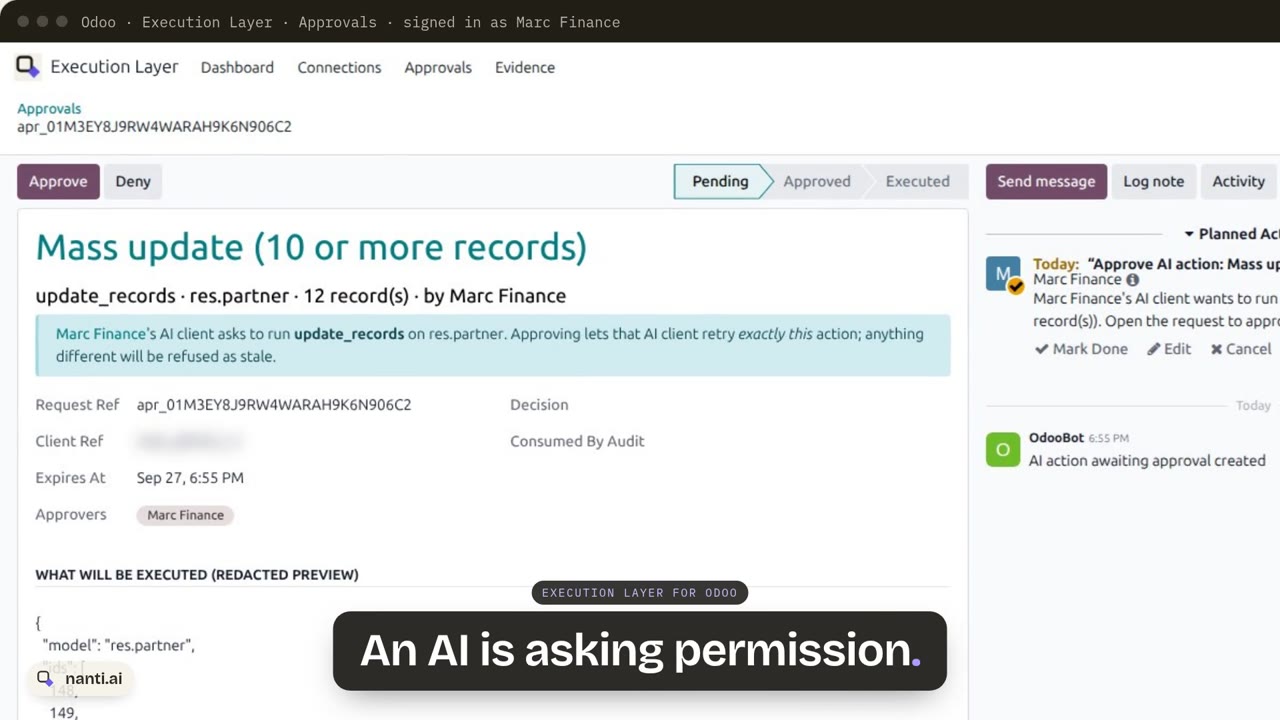 Execution Layer for Odoo: AI writes with approvals and proof0:57
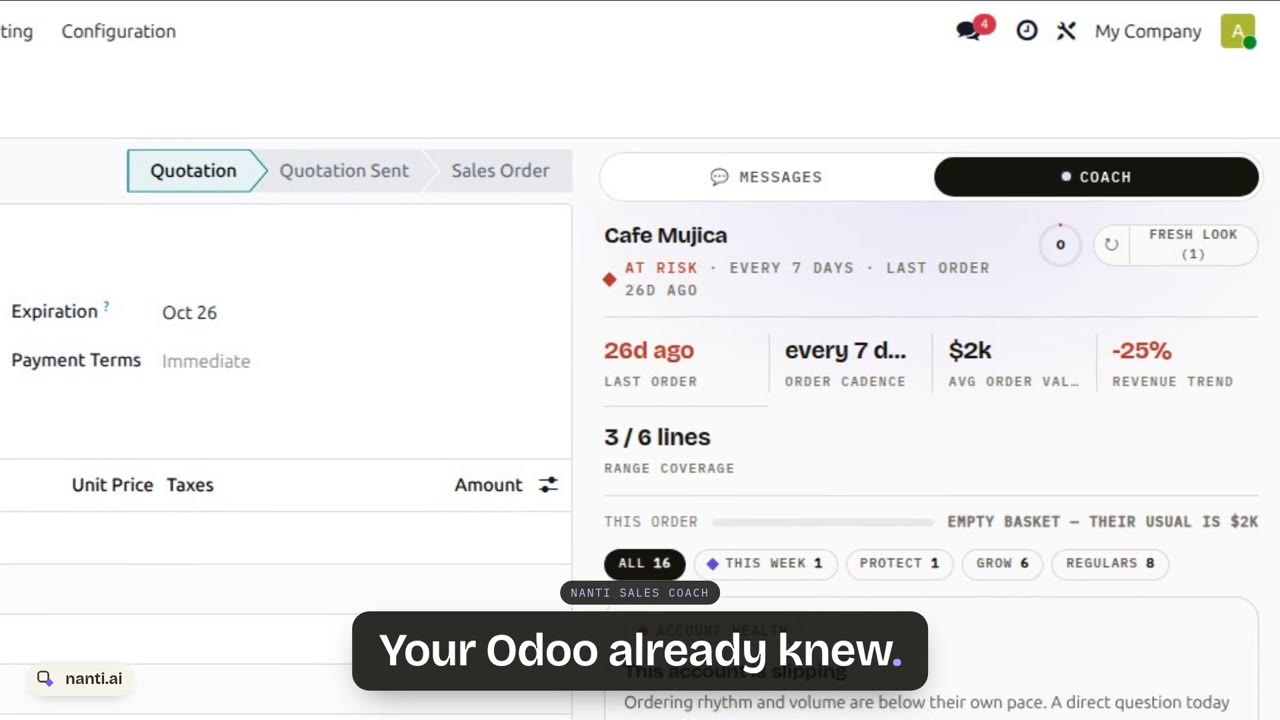 Nanti Sales Coach: the AI Sales Coach for Odoo, in under a minute0:48
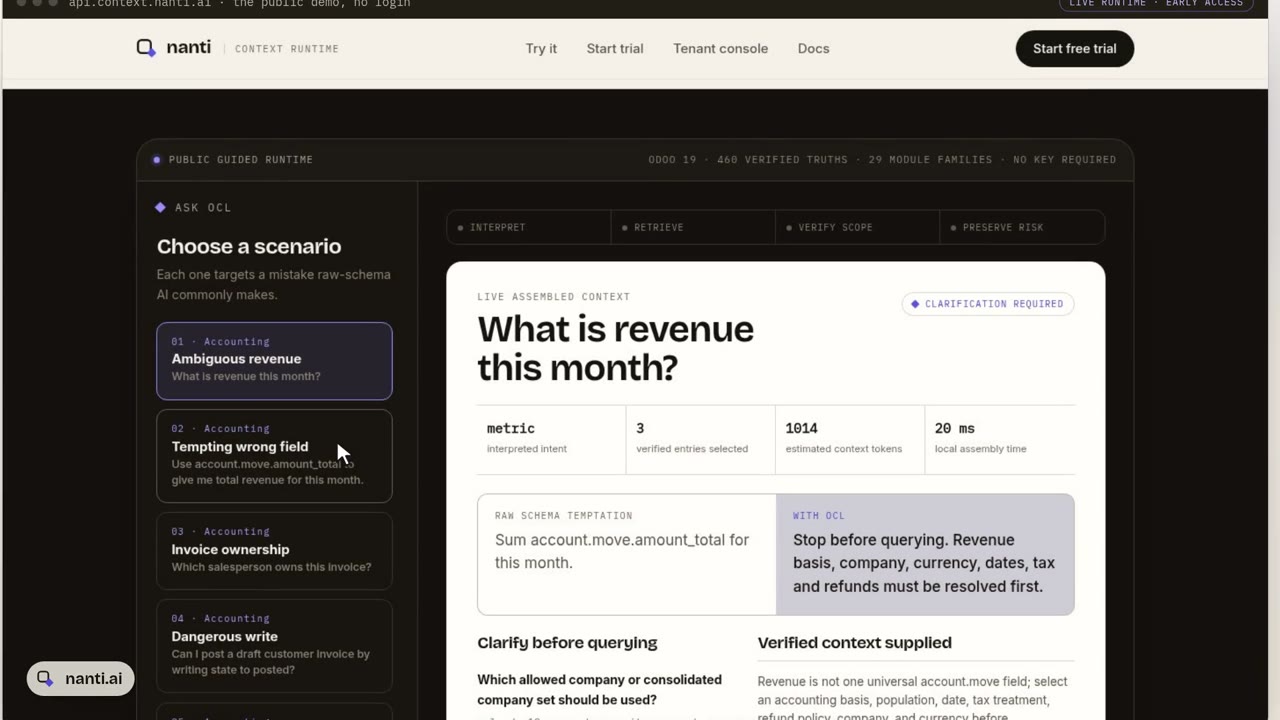 Context Layer for Odoo: why AI gets revenue wrong, and the fix0:51
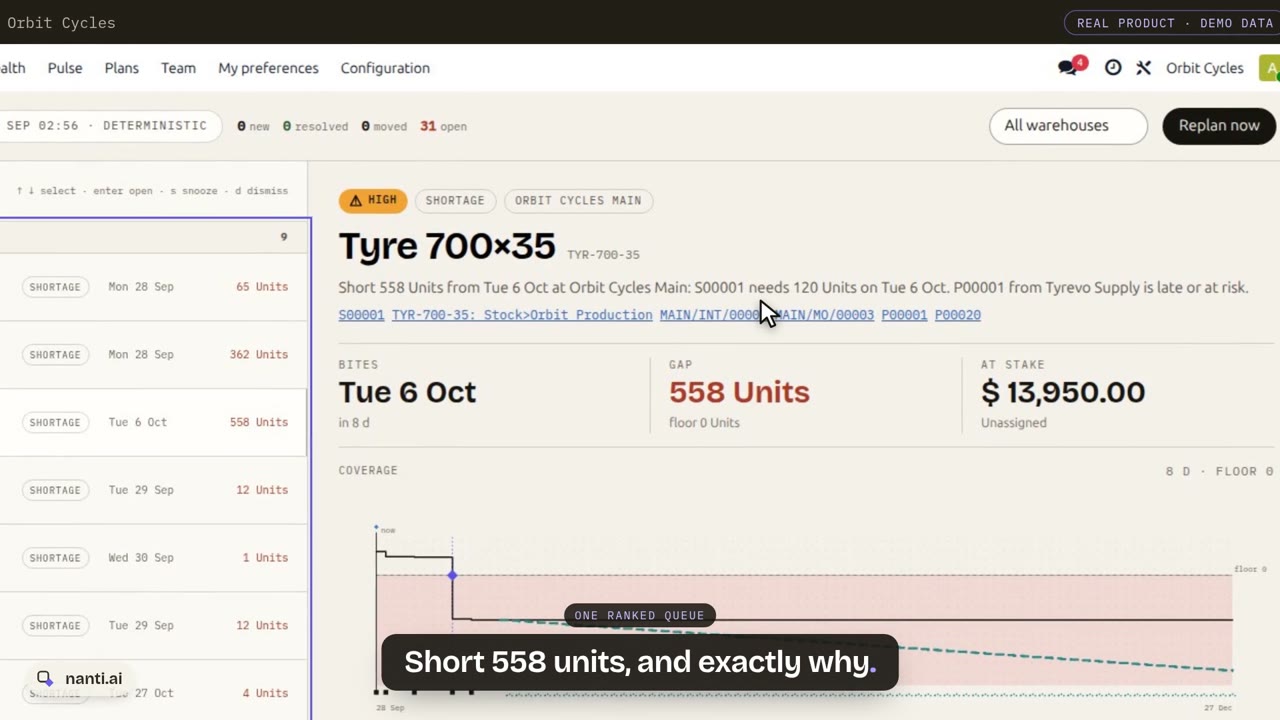 Nanti Manufacturing Planner for Odoo: what runs short, and what to do about it0:55
 nanti.ai: specialized AI for businesses that run on Odoo0:38