Nanti Sales Coach
Concepts.
The coach panel, the customer snapshot, the Coach Score, every coaching play, Coach Chat, and how the coach learns from dismissals. Defined precisely, as the product actually behaves.
The coach panel
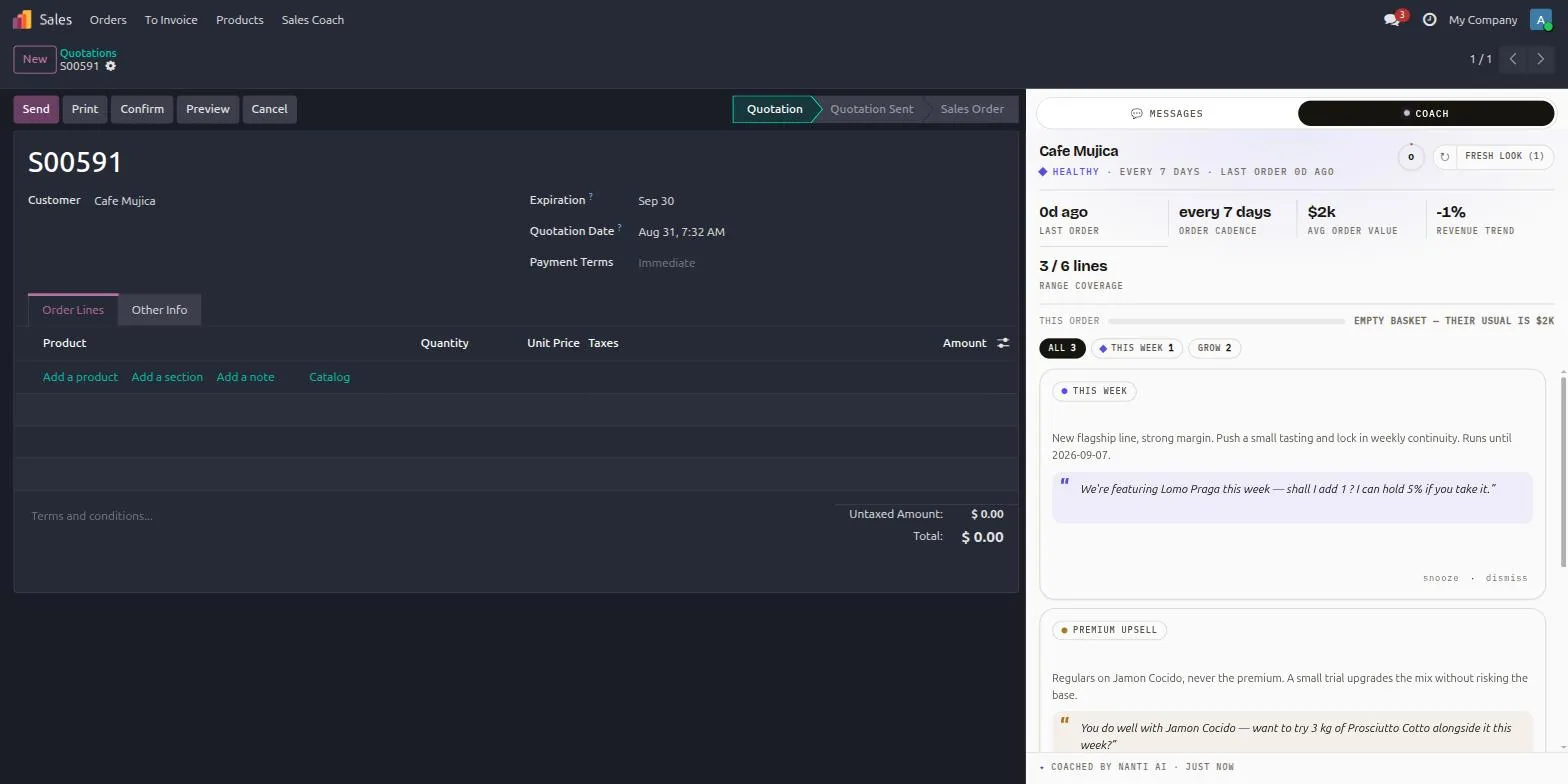
The panel docks on the right of the quotation form, sharing space with the chatter through a segmented toggle: Messages and Coach (the Coach tab carries a live dot when there are cards), plus an Ask tab when Coach Chat is enabled. On small screens, a floating Open Sales Coach button opens it instead.
Top to bottom, the panel shows:
- Header: the customer’s name, a one-line summary (risk word, cadence, last order, for example “Watch · every 9 days · last order 14d ago”), the Coach Score ring, a free cache-refresh button (↻), and the Fresh look (1) button that forces a new AI pass for 1 enrichment.
- The customer snapshot: the KPI strip.
- The order-vs-usual bar.
- Focus chips that filter the card stack.
- The card stack, with a “Show N more” control past the visible limit (7 cards by default).
The panel is honest about its own state. With no customer picked it says “Pick a customer and I’ll brief you.” A brand-new customer gets “New customer - no history yet.” with company-wide coaching only. When there is history but nothing worth saying: “No coaching plays right now. I’ll stay quiet until there is a useful play.” On confirmed orders the panel becomes a read-only recap with actions locked.
The footer chip carries provenance: “Coached by Nanti AI · just now” normally, “coaching…” while AI wording is being generated, and “offline coaching” when running in deterministic mode.
The customer snapshot
Six KPIs, all computed locally from your own confirmed sales history, each of them toggleable in Settings:
| KPI | What it means |
|---|---|
| Last order | Days since the last confirmed order. Turns amber when it passes 1.5 times the customer’s cadence, red past 2.5 times. |
| Order cadence | The median number of days between this customer’s orders. |
| Avg order value | The median order total in the lookback window, with a live delta against the current order. |
| Revenue trend | Last 90 days of revenue against the 90 days before. Flagged when it drops 20 percent or more. |
| Range coverage | How many of your active product categories this customer buys from. |
| Risk | A churn classification: Healthy, Watch, or At risk. |
Four more KPIs are available and ship off by default, each behind its own toggle: overdue balance, margin profile, year-to-date revenue, and premium share. Overdue balance and margin appear only when the underlying data exists (Accounting installed, costs set).
The Coach Score
A live 0 to 100 ring in the panel header. It measures how close the current quote is to this customer’s own normal shape, not to an average of your customer base. It only appears once the customer has enough history for patterns (three confirmed orders by default).
Three weighted components make up the score:
| Component | Weight | What it compares |
|---|---|---|
| Basket | 40 | The order total against the customer’s median order value. |
| Mix | 25 | The premium share of this quote against their historical premium share. |
| Growth | 15 | Whether a growth item is on the quote when a growth play is available. |
A quote that matches the customer’s norms scores near 100. Clicking the ring opens “What would raise it”: up to three concrete raisers, each with a +delta and an instruction taken from a real card (for example, “+16 Add 12 kg — Jamón Cocido”). If nothing applies, it says “This quote is close to their normal shape.”
The score recomputes on every line edit. Accepting a play that fills the weakest component moves the score up by roughly that component’s remaining gap, which is exactly the +delta the raiser showed. This is why per-accept gains taper as the basket fills.
Coaching plays
One card is one detected signal. Every card carries a badge, a headline, up to two lines of reasoning, a quoted talk track the salesperson can say out loud, and one or two actions. The cards render instantly with built-in wording; the AI then re-words them in place. The AI may rephrase, but it never invents figures: every number on a card traces back to your data.
The plays, and what accepting each one does to the quotation:
| Play | When it appears | Accepting it |
|---|---|---|
| Regular buy | A product this customer buys on a rhythm is due and missing from the order | Adds the line at their usual quantity |
| Quantity drop | A line’s quantity is well below this customer’s typical amount | Sets the quantity back to typical |
| Mix defense | The customer switched from a premium product to its cheaper alternative | Switches the line back, or adds the premium alongside; may carry an authorized discount |
| Premium upsell | A regular buyer of a standard product has never tried its premium version | Adds a small trial quantity alongside |
| Cross-sell | Customers who buy what this one buys also buy a companion product this one does not | Adds the companion line |
| New line | A strategic product this customer has never bought | Adds a starter line |
| This week | The owner’s running directive matches this customer | Adds the priority product, with the authorized discount when the directive is an offer |
| Expiry push | Stock is expiring soon and this customer buys the category (ships off by default) | Adds the line, with a discount when authorized |
| Payment nudge | The account carries an overdue balance (needs Accounting installed; salespeople see it only when “Show credit to salespeople” is on, managers always do) | Logs a payment follow-up activity noted “Follow up on open balance”; never changes the quote |
| Margin guard | A line’s discount sits above your warning floor (it never fires inside an offer’s authorized discount) | Sets the line’s discount back down to the floor |
| Volume nudge | The order sits just short of a pricelist break or the free-delivery threshold | Raises the line quantity to the break, or adds the customer’s usual filler product to clear free delivery; sometimes talk-only |
| Account health | The account has drifted into Watch or At risk | Logs a follow-up activity on the account; a conversation play, not a product play |
| Low basket | The order total is far below this customer’s usual and the gap is unexplained | Points back at the missing regulars; no direct line change |
At most one card appears per play-and-product combination per order, and the panel shows up to seven cards before “Show N more”.
Note
Discounts are guarded server side. An accept can never apply a percentage above what the directive or offer authorizes, no matter what the card shows.
Focus filters
Single-select chips above the cards, each with a live count. Chips with nothing to show stay hidden.
- All: every card.
- This week: the owner’s directive.
- Protect: mix defense, quantity drops, account health, low basket, payment nudges, margin guard.
- Grow: new lines, premium upsells, cross-sells, volume nudges, expiry pushes.
- Regulars: due regular buys.
The order-vs-usual bar
A horizontal bar under the KPI strip labelled “This order”. With lines on the quote it reads
{ratio}% of their usual (the order total divided by their typical order value). With an empty
basket it reads empty basket — their usual is {amount} (both verbatim UI strings).
Ask the coach (Coach Chat)
With Coach Chat enabled, the side panel gains a third tab, Ask (“Ask the coach”, subtitle “Customer-only answers from the live coach context.”). Type a free-text question about the customer on the current quotation and the answer is grounded only in that customer’s live coach context: the same compact aggregates a coaching card uses, one customer at a time. With no customer picked it says “Pick a customer first.” and “Coach Chat stays scoped to one customer at a time.”; switching customers clears the thread (“New customer - chat cleared.”).
When the answer spots an opportunity, the chat can offer the same one-click accept actions as the cards; accepting from chat writes to the recommendation log like a card accept (source “Coach chat”), so the Performance dashboard counts it. Each turn sends the last 20 messages of the conversation; no chat transcript is stored on the coaching service. A chat question counts as 2 enrichments, from the same pool as card wording.
Coach Chat is off by default (enable_chat in Settings) and is a premium AI feature: if
your subscription does not include it, the Ask tab shows a locked preview and an upgrade path
instead of failing. If the connection drops mid-chat, the tab says “Chat needs a connection.
Cards still work.”, and deterministic coaching continues.
The weekly directive
The owner’s or manager’s instruction, written once, that becomes coaching on every matching quotation. A directive has a type (push product, offer, or message), the products or categories it covers, a date range (one week by default), a priority weight, and a free-text “Why / how to argue it” note that the AI weaves into the talk track. Offers carry a discount authority percentage, which is the hard ceiling for any discount the card can apply.
Directives can target everyone, a customer segment (partner tags), buyers of a category, or a hand-picked customer list. They appear to salespeople as the This week card and in the My Coach brief, and a “Duplicate next week” action rolls one forward seven days. See For managers and owners for the full flow.
The My Coach daily brief
Under Sales → Sales Coach → My Coach, each salesperson gets a personal brief:
- Due to order: customers whose own rhythm says an order is due, each with a one-click quotation button.
- Worth a call: accounts drifting into Watch or At risk.
- This week: the running directives.
- A personal wins figure: accepted plays this month, with their estimated and actual value.
“My customers” means the partners assigned to the salesperson plus the customers of their recent confirmed orders.
How dismissals teach it
Dismissing a card offers three reasons, and each one does something different:
| Reason | Effect |
|---|---|
| Declined | The play goes quiet for 90 days for this customer. |
| Wrong data | The card is flagged for manager review; it shows up on the Performance dashboard. |
| Not relevant | Recorded as the reason, for tuning. |
A plain snooze without a reason quiets the card for 14 days. Suppressed plays stay quiet until their window passes, so the panel does not nag.