Nanti Sales Coach
For managers and owners.
The Performance dashboard and what each number means, the weekly owner digest email, and how to write a weekly directive that reaches every relevant quotation with your reasoning attached.
The Performance dashboard
Sales → Sales Coach → Performance (coach Managers only). The subtitle says what it is: “What the coach found, what the team took, and what it invoiced.” A period switcher defaults to the last 30 days.
The numbers, precisely:
| Metric | Definition |
|---|---|
| Coach-attributed revenue | The value of accepted plays on confirmed orders, recorded from the confirmed order lines. Real money from real orders, not estimates. |
| Accepted value | The value estimated at the moment each play was accepted. |
| Acceptance rate | Accepted cards divided by shown cards, as a percentage. |
| Where the value comes from | Accepted plays grouped by play type, with count, estimated value, and actual value. |
| Team adoption | Per salesperson: cards shown, accepted, estimated value, actual value. |
| Worth a look | Cards the team flagged as “wrong data” (each needs a manager’s review) and the breakdown of dismissal reasons. |
| Running directives | How many directives are currently live. |
Before the team accepts anything, the dashboard says so plainly: “No accepted plays in this period yet. The numbers start the moment the team takes a card.”
Confirmed, not invoiced
Attribution is recorded when the order is confirmed, from the confirmed order lines. If your process cancels or revises confirmed orders often, read the number with that in mind.
The weekly owner digest
An automatic Monday-morning email that tells managers what the coach did last week, without opening a dashboard. It sends once per week when the company-local time reaches Monday 07:00 (timezone resolved from the company calendar, then the company address, then the user).
The email, top to bottom: the title “Weekly owner digest”, a hero tile labelled “The number” (coach-attributed revenue from confirmed orders in the last 7 days, shown against the trailing 4-week average), then “At risk”, “This week’s plays”, and “Wins”, with footer links to the Performance dashboard and Directives.
How it is controlled:
- A coach Manager turns it on for the company in Settings (
enable_digest, off by default). It is a premium feature: when your subscription does not include it, Settings says so instead of sending nothing silently. - It goes to active coach Managers with an email address. Each manager has a personal “Do not email me the weekly digest” opt-out; other managers keep receiving it.
- “Send me a digest preview” generates the email on demand so you can see this week’s version before Monday.
Writing the weekly directive
Under Sales → Sales Coach → Directives, create one and set:
- Name and type: push a product, make an offer, or send a message.
- Products or categories it covers.
- Dates: defaults to a one-week window starting today.
- Priority weight: how hard it competes with other coaching (directives always rank near the top).
- “Why / how to argue it”: your reasoning, in your words. The AI weaves this into the talk track every salesperson sees, so the argument travels with the instruction.
- Discount authority (offers only): the maximum percentage any salesperson can apply through the card. The server enforces this ceiling on every accept.
Targeting: everyone, a customer segment by tag, buyers of a category, or specific customers.
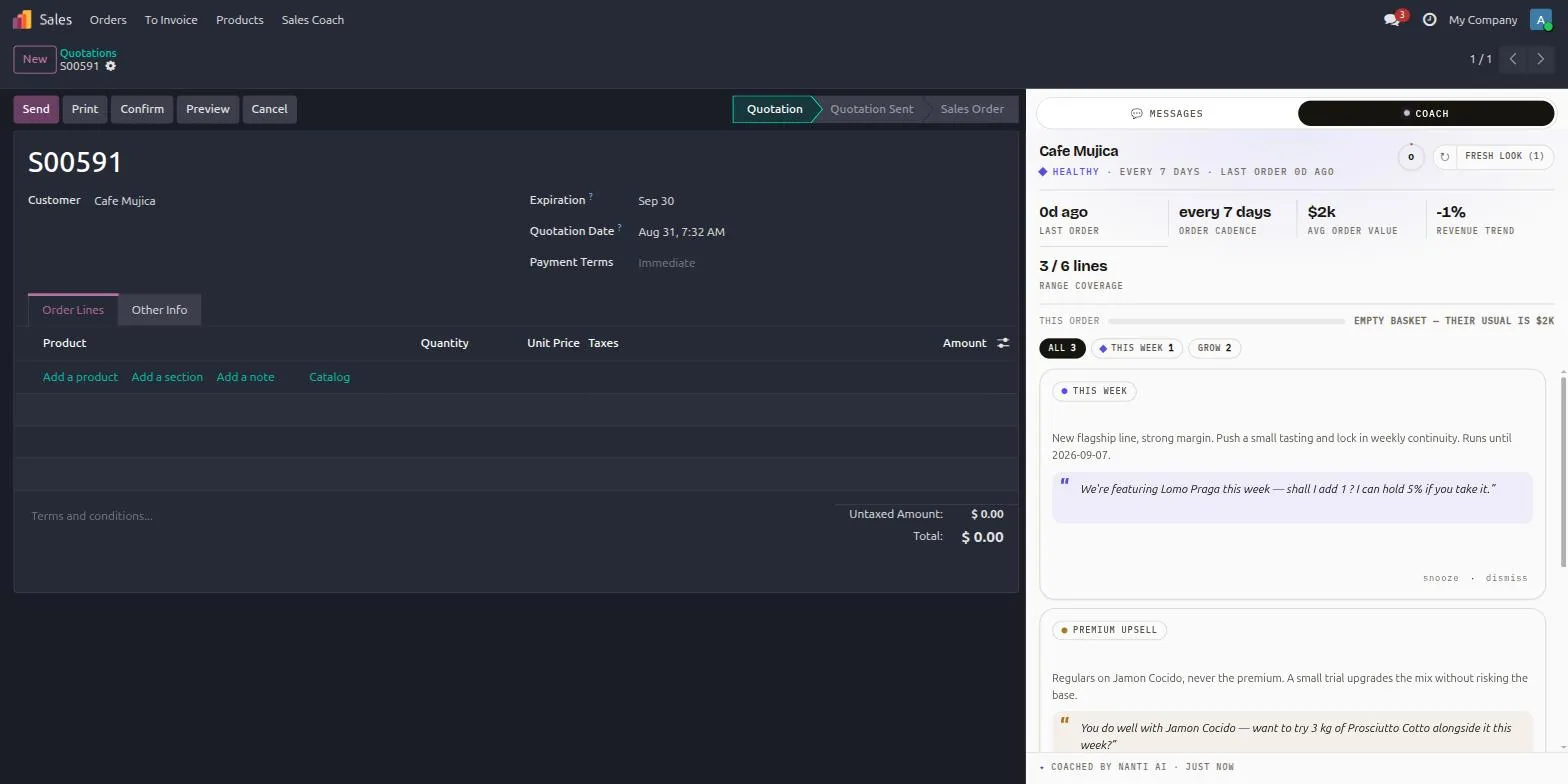
The directive appears as the This week card on every matching quotation and in each salesperson’s My Coach brief. When it expires, “Duplicate next week” rolls it forward seven days with one click.
Tip
Write the “why” as if briefing your best salesperson. That text is what turns a push into an argument the customer actually hears.
Reviewing “wrong data” flags
When a salesperson dismisses a card as “wrong data”, the row lands in the dashboard’s review queue. The usual causes are product links that need correcting and thresholds that need tuning for your business; both live in Configuration.