Nanti Sales Coach
Daily use.
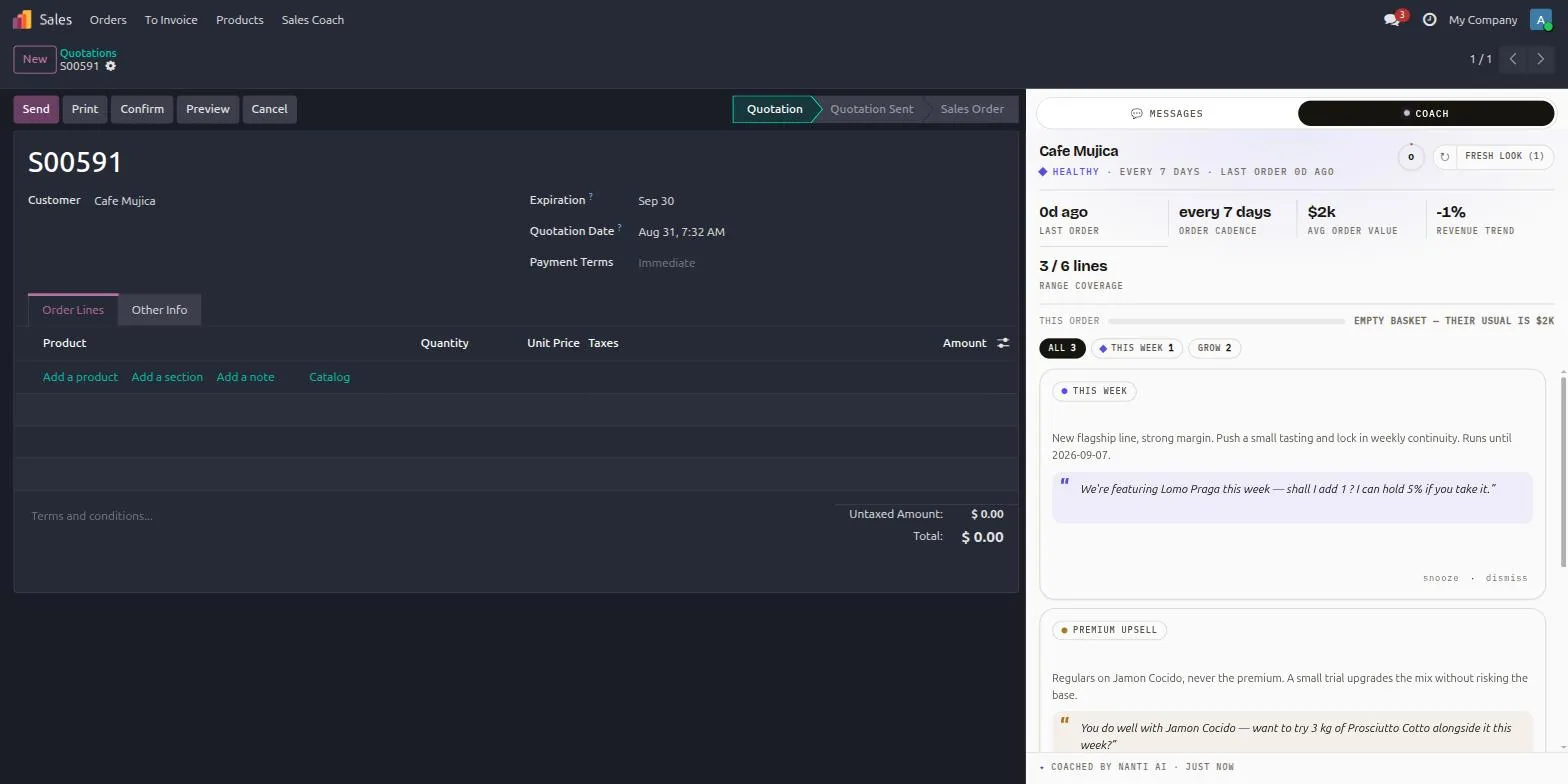
The salesperson's flow with the coach, start to finish. Read the brief, say the line, accept with one click, ask the coach about the customer, undo when needed, and log the follow-up.
The flow
- Open a quotation and pick a customer. The Coach tab lights up, and the snapshot plus the first cards render immediately.
- Within about ten seconds the cards upgrade to AI wording in place. The footer shows “coaching…” and then “Coached by Nanti AI · just now”. Nothing blocks you while it happens.
- Read the card: two lines of reasoning, then the quoted talk track. Tap the talk track to copy it, so you can paste it into a chat or read it on a call.
- Narrow the stack with the focus chips (This week, Protect, Grow, Regulars) and act on the cards that fit the conversation.
Accepting a play
Click the card’s primary action, for example ”+ Add 12 kg”, “Set qty to 8”, or “Switch line”. The change lands on the current, unsaved order: a line is added, a quantity is fixed, a product is switched or added alongside, or an authorized discount is applied. The card collapses to a one-line confirmation, “Added 12 kg Jamón Cocido”, with an undo link.
Undo reverts the line change and brings the card back. Dismissals get their own undo too.
Tip
You do not need to save the order for the coach to react. It reads the form as you type and recomputes shortly after you stop editing.
Logging a follow-up
The Account health card is a conversation play, not a product play. Its action, “Log follow-up”, creates a scheduled activity on the account (“Follow up on account health”) and never touches the order. The Payment nudge card works the same way: “Log payment follow-up” creates an activity noted “Follow up on open balance” and never changes the quote.
Asking the coach
With Coach Chat enabled, the Ask tab sits next to Messages and Coach. Ask a free-text question about the customer on the quotation (“Ask about the current customer…”) and the answer comes only from that customer’s real numbers, one customer at a time. When the answer carries an action, accepting it works exactly like accepting a card and counts on the Performance dashboard. Switching customers clears the thread. The full behavior, including what a chat turn sends and meters, is in Concepts and Security and data.
What updates live
- Changing the customer recomputes everything immediately.
- Editing lines (product, quantity, unit, price, discount) recomputes after a short pause (1.2 seconds by default), so the panel does not flicker while you type.
- The snapshot deltas, the order-vs-usual bar, the Coach Score, and the card stack all react together.
- The Fresh look (1) button forces a brand-new AI pass whenever you want one; it spends 1 enrichment. The ↻ refresh button beside it re-reads from cache and is free.
When the order is confirmed
On confirmation, the panel becomes a read-only recap of what the coach suggested and what was taken. Accepted plays tied to a product get their actual value recorded from the confirmed order lines, which is what the manager’s Performance dashboard reports.
With the Coach on confirmed orders setting on (off by default), confirmed sale orders that are still editable keep live coaching and actions; locked or done orders keep the recap.